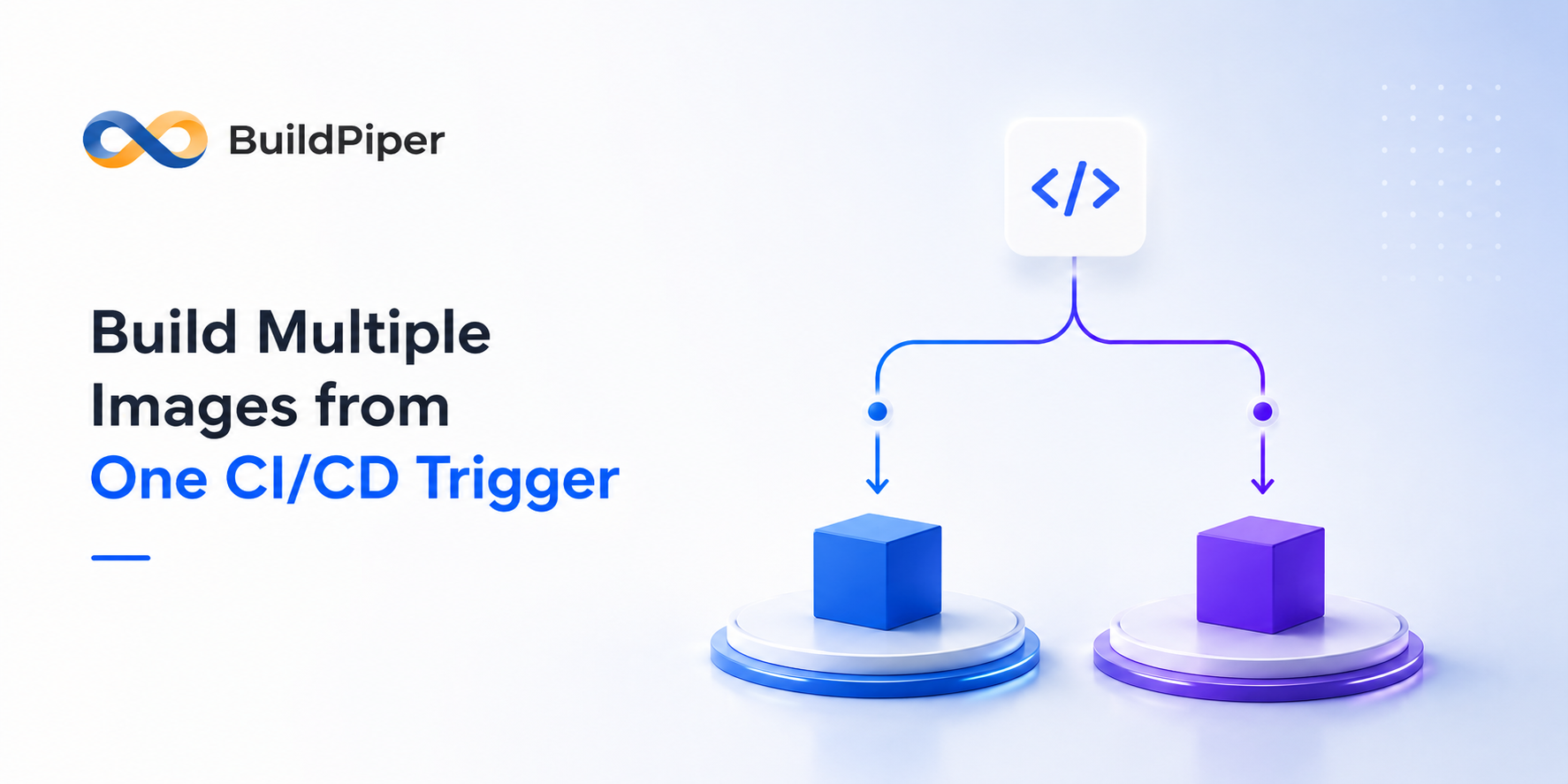
Child/Secondary Build: Build Two Images From One Trigger, the Easy Way
Sometimes one build isn’t enough.
Maybe you need to build a small companion service (a sidecar) along with your main service. Maybe you want to test a new feature in a separate image, without touching your main build configuration at all. Maybe you need a debug version of your app alongside the regular one.
Whatever the reason, you may end up with two or more images for a single application and most CI/CD tools don’t make that easy. You either create a copy of existing pipeline and then maintain them together, or you squeeze a second build into your first one and hope it doesn’t slow things down or break anything.
BuildPiper has a simple answer for this: Child/Secondary Build.
Explore Another Success Story:
Modernizing software delivery across financial institutions?
See how BuildPiper helps banks, fintechs and regulated financial organizations achieve faster releases, stronger DevSecOps governance and enterprise-grade compliance, without compromising the stability of mission-critical banking platforms.
What it is, in plain terms
A Secondary Build is a second, independent build that runs alongside your main build – triggered by the same event, but completely separate from it in every other way.
- It has its own settings – source, environment variables, hooks, everything.
- It runs at the same time as your main build, not after it.
- It produces its own image, separate from your main image.
- If it fails or has a problem, your main build is not affected at all.
In short: one push to your code, two builds happen, two images come out and neither one depends on the other
Where to find it
On any service’s Env Build Details page, right below your Main Build, there’s a button called “Configure Secondary Build.”
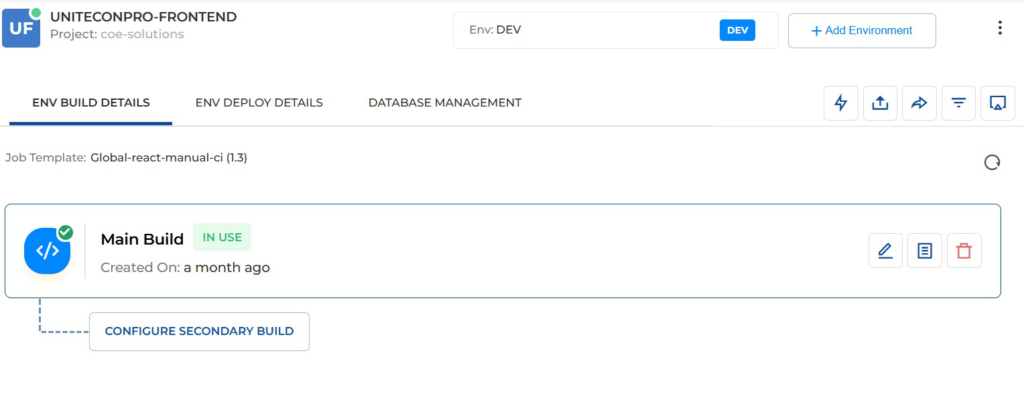
- Env Build Details showing the Main Build card and the Configure Secondary Build action
Click it, and you’re guided through four simple steps to set it up: Source Details, Env Variable, Hooks and Promote Configuration.
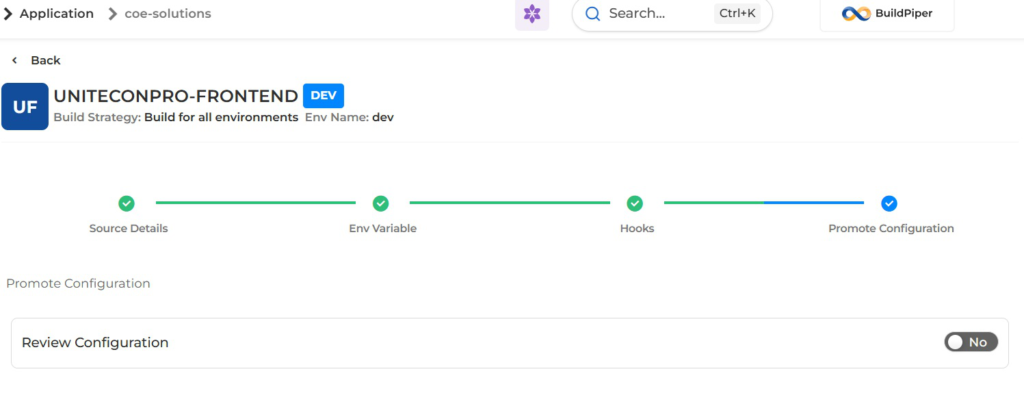
- Secondary build configuration steps: Source Details, Env Variable, Hooks, Promote Configuration
That’s the whole setup. No YAML to edit, no second pipeline to create – just fill in these four steps and your secondary build is ready to go.
Why This Matters
Most CI/CD tools don’t give you a proper way to do this. Usually, teams end up with one of these workarounds:
- Copying the whole pipeline – now you have two pipelines to keep updated every time something changes.
- Adding a second build step after the first – now your second build only runs if the first one succeeds, even if there’s no real reason for that.
- Writing complicated conditional logic – which works, but may become hard for some on the team to understand.
BuildPiper skips all of that. Instead of forcing you to work around the problem, it gives you a clean, dedicated way to say: “this environment needs a second build, and here’s how it should work” – without touching your main build at all.
When you’d actually use this
- Sidecar images – build your main service and a helper service (like a logging agent or proxy) from the same code push, without maintaining two pipelines.
- Testing new features safely – build a separate image with a new feature or flag turned on, without putting your main build at risk.
- Full and lightweight versions – maintain a full-featured image (with extra tools) and a slim production image, both built from the same trigger, always in sync.
- Debug builds – keep your production image clean and lightweight, while automatically
building a debug version alongside it for when something goes wrong.
The simple way to know if you need it
Ask yourself: “Do I need a second image, but I don’t want it to depend on my main build?”
If the answer is yes, that’s exactly what Secondary Build is for.
In short
Child/Secondary Build lets you produce a second, fully independent image from the same trigger as your main build , with its own settings, its own run, and zero risk to your main build if something goes wrong. It’s a small button with a big impact: no duplicate pipelines, no fragile workarounds, just a clean way to do something teams need more often than they’d expect.
Ready to try it?
- Go to your service’s Env Build Details page.
- Click Configure Secondary Build, right below your Main Build card.
- Fill in the four steps – Source Details, Env Variable, Hooks, and Promote Configuration.
- Push your code. Your main build and secondary build now run side by side, automatically,
every time.
That’s it – no new pipeline to write, no one else on the team to coordinate with, no risk to what’s already working.
Have a use case that doesn’t quite fit the examples above? Reach out to the BuildPiper team- we’d love to hear how you’re using it.
” You can set up a Secondary Build from your service’s Env Build Details page – just click, “Configure Secondary Build” and follow the four steps ”
Related Searches
- How to Create a Dockerfile?
- Docker Images vs Containers: Explore the Differences
- BuildPiper vs Harness — Which DevSecOps Platform Wins for Your Enterprise?
- Top DevSecOps Consulting Companies in India 2026